
Tray & window behavior
Sentinel is a tray-only app — there’s no Dock icon. The tray icon lives in your menu bar (macOS) or system tray (Windows/Linux).
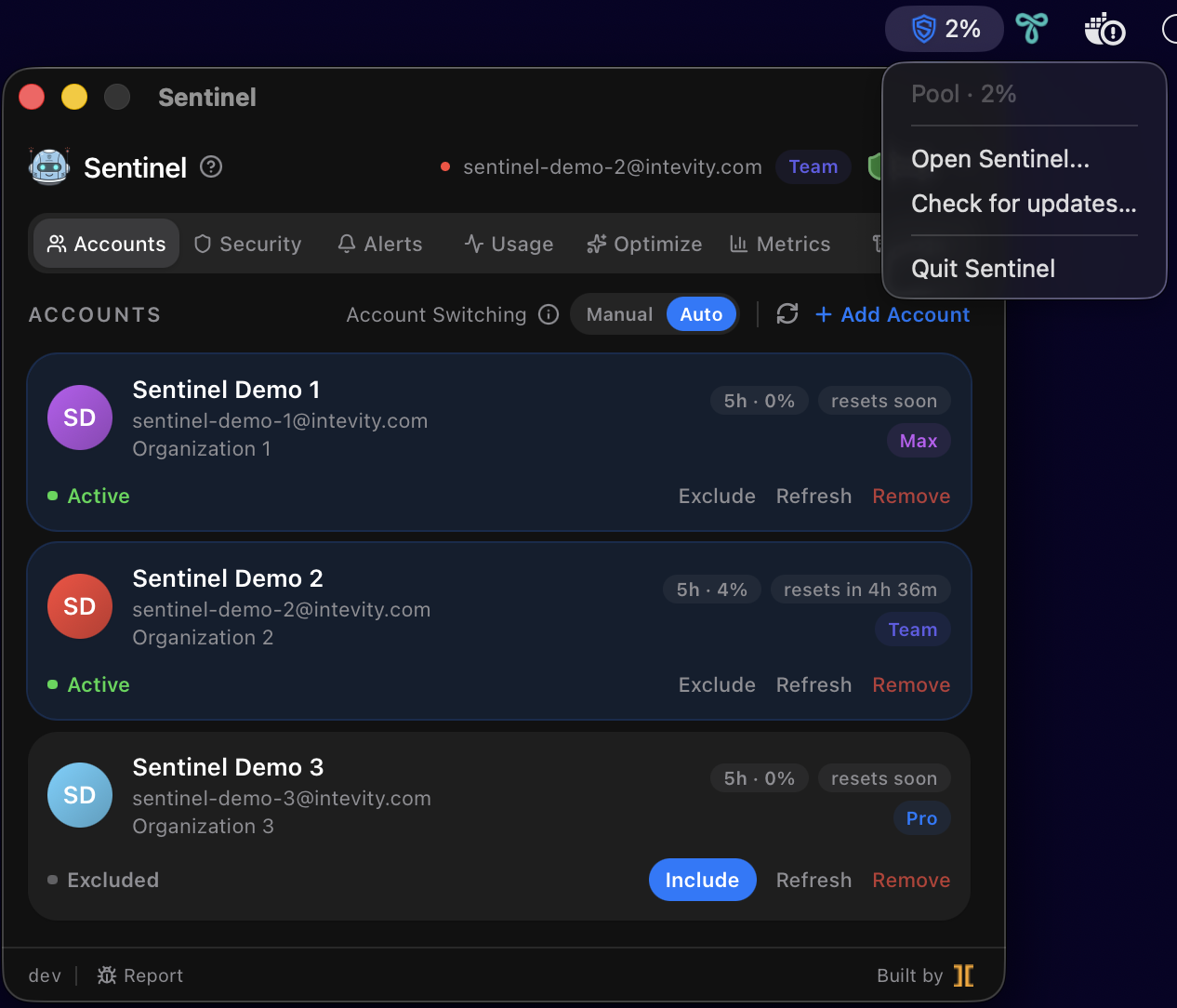
Showing and hiding the window
Section titled “Showing and hiding the window”- Click the tray icon to open the window.
- Closing the window with the red ⨉ (or ⌘W) hides it — the background daemon keeps running so Claude Code can keep routing through it.
- To fully quit, use the ⋯ menu → Quit Sentinel, or the tray menu → Quit Sentinel.
The ⋯ menu
Section titled “The ⋯ menu”The in-app overflow (⋯) menu offers:
- Live daemon pid and uptime.
- Uninstall Sentinel… (with an option to also delete local data).
- Quit Sentinel.
Window sizing
Section titled “Window sizing”The window is pinned to a compact, non-resizable size for tray-menu ergonomics. The exception is when DevTools is open (see below), where the window temporarily grows to give the inspector room.
The dev badge
Section titled “The dev badge”The footer carries a dev version badge that toggles the platform’s native web inspector
docked inside the Sentinel window — Safari Web Inspector on macOS, Edge DevTools on Windows,
WebKitGTK Inspector on Linux. Click it to open, click again to close. The window grows while the
inspector is docked and restores its tray size when you close it. See
Debugging for what each inspector gives you.
Launch at login
Section titled “Launch at login”Controlled by the launchAtLogin setting (default on) — see the
Settings reference.