
Accounts & multi-account routing
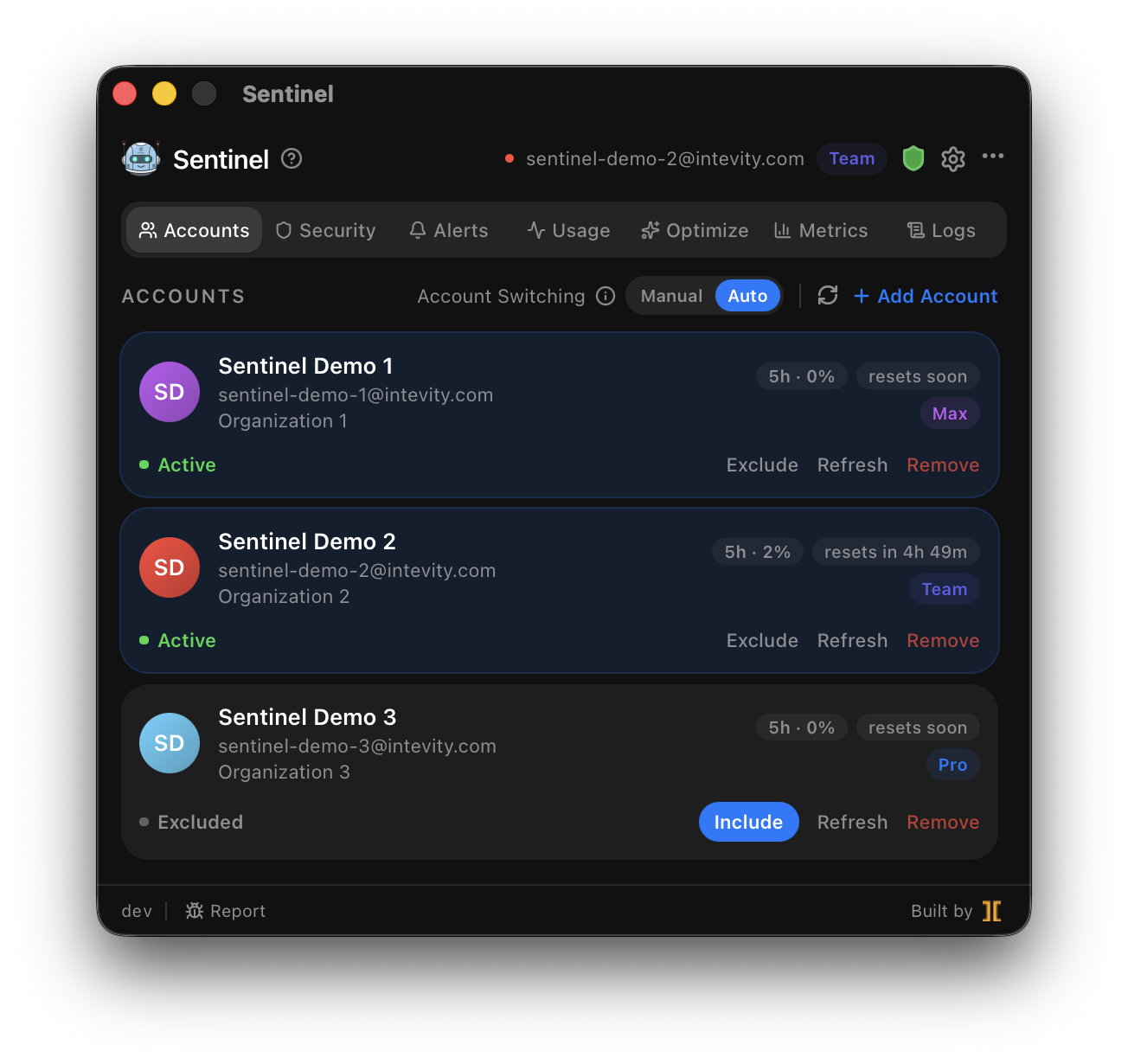
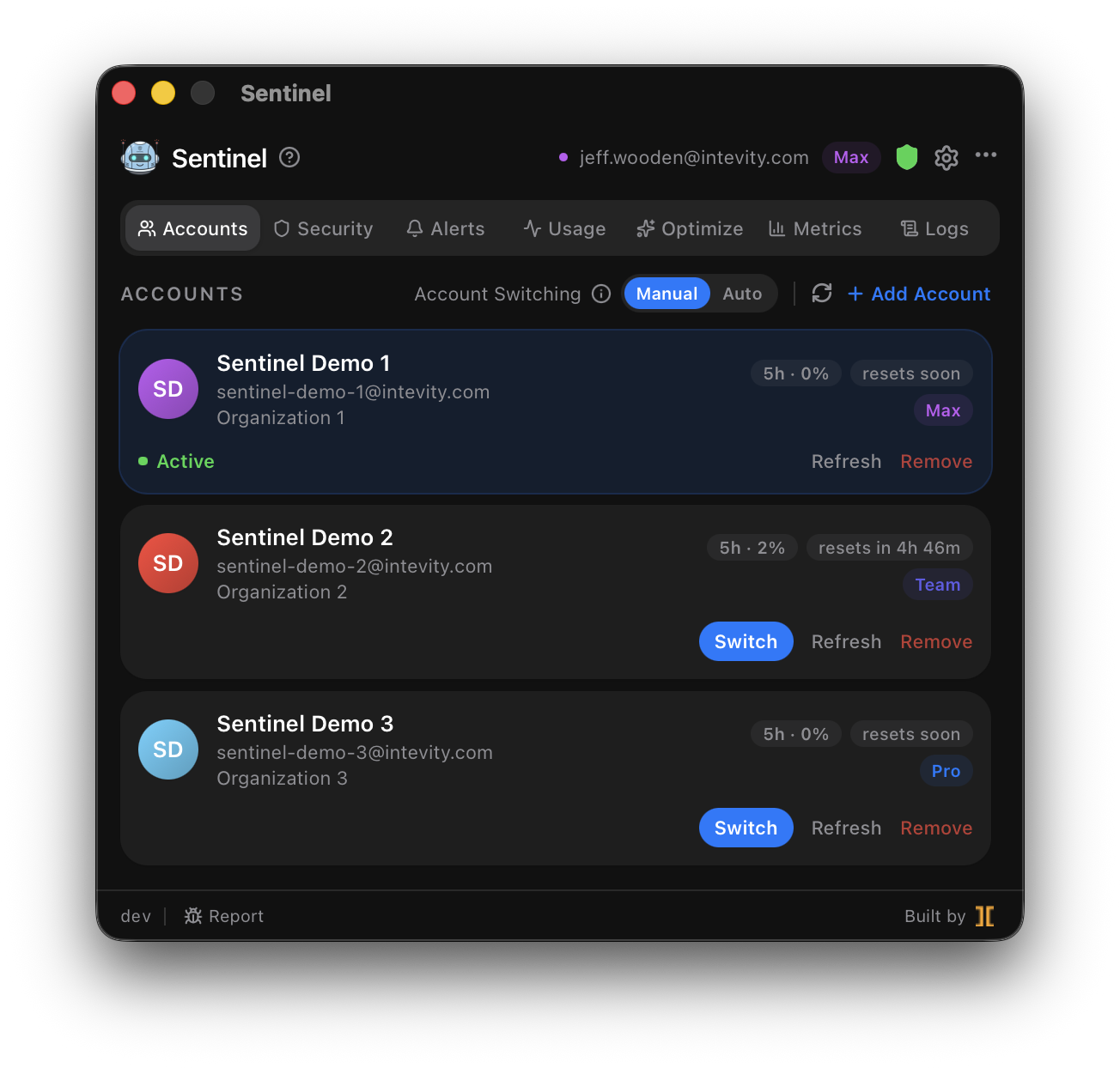
The Accounts tab is home base. It lists every Claude account you’ve enrolled (Pro, Max, Team, Enterprise), shows which one is currently serving requests, and lets you switch, tag, pause, or remove them.
Enrolling accounts
Section titled “Enrolling accounts”Click Add Account. Sentinel opens an in-app terminal running claude setup-token — the
official Claude Code sign-in — and captures the long-lived token it produces. Complete the browser
sign-in for the account you want to enroll, then give the account a name and (optionally) an
organization label. You can enroll as many accounts as you own.
Why the name is asked: setup tokens are inference-only by Anthropic’s design. They can’t read your profile, so Sentinel cannot derive the account’s email, display name, or organization from the token — the name and organization you type are how you tell accounts apart in the UI. Both are editable later, and you can also assign a color tag to each account.
Editing name and organization
Section titled “Editing name and organization”Click Edit on any account card to change its display name or organization label at any time — useful for filling in an organization you skipped during enrollment or fixing a typo’d name. The change applies immediately across the UI.
Restoring a deleted account
Section titled “Restoring a deleted account”Because setup tokens carry no identity, re-adding an account Sentinel once knew would normally create a fresh entry. If you removed an account with Keep Data, the name step instead offers Restore choices for each deleted account — pick one and the new token attaches to the old account, bringing back its name, organization, and usage history.
Re-authenticating
Section titled “Re-authenticating”Setup tokens last about a year. When one expires or is revoked (surfaces as upstream 401s — for example, Claude Desktop reporting rejected credentials), the account shows a Re-authenticate action that runs the same terminal flow and refreshes the credential in place, keeping all of the account’s data.
Switching modes
Section titled “Switching modes”Open Settings and pick a switching mode:
- Off — you manage the active account by hand from the Accounts tab. The header always shows which account is active.
- Auto — Sentinel moves the active account for you, so you’re not switching manually as windows fill up. Each switch safely rewrites the active OAuth credential, and the header always reflects the account currently serving requests.
How Auto chooses
Section titled “How Auto chooses”In Auto mode, Sentinel selects from a pool of your enrolled accounts. The default strategy, earliest-reset, hard-targets the account whose 5-hour rate-limit window resets soonest — keeping you on capacity that’s about to refresh rather than capacity you’ve already spent.
- Pool exclusions — exclude specific accounts from Auto routing (for example, a work account you
only want used manually) via
poolExcludedIdsin Settings. - Paused accounts are skipped — if spend caps pause an account, Auto routes around it until its window resets.
Account lifecycle
Section titled “Account lifecycle”- Sync — capture or refresh an account’s credentials from Claude Code.
- Pause / unpause — temporarily take an account out of the Auto pool.
- Remove — soft-delete an account. It moves to Deleted Accounts and can be brought back later via Restore with all of its data.
- Purge — hard-delete an account and all data associated with it.
Removing or purging the account that is currently serving requests is safe: Sentinel hands the proxy to another enrolled account automatically (or stops injecting credentials when none remain), so Claude Code and Claude Desktop never keep riding a deleted account’s token.
Pool view
Section titled “Pool view”In Auto mode the Usage tab can aggregate every pooled account into a single pool view, so you see combined headroom rather than juggling per-account windows. See Usage & rate limits.